

STPDF900 Quick Start Guide
Batch Scanning With Barcodes
Follow the instructions to download and install the ScanToPDF software and (optionally) import evaluation settings before following these instructions
Plugins Included In the Solution
Auto File Namer + Barcode Recognition + Batch Separation + Auto File Import + Document Indexing
Purchase Page
To purchase this solution click here
Automatic Filenamer settings (Settings that control the output file path location)
Start ScanToPDF
Click the Edit menu and choose Options
Click the Automatic File Namer icon
In the Output file path setting enter a folder name and file name, for example
C:\PDF Files\{GetBarcodeText()}.pdf
(which will name the file using a barcode on the page)
Click Save on the bottom right of the settings window
For detailed information about the other settings please click here
Barcode Recognition Settings
Click the Barcode Recognition icon
Choose the barcode(s) type(s) required using the Type check list box
Click Save on the bottom right of the settings window
For detailed information about the other settings please click here
Setting the batch separation mode
Click the “Batch Separation” ICON
The example settings use Barcoded page. Please click here for more information about batch separation modes
If a different method is required, please choose the mode required
Click Save on the bottom right of the settings window
For detailed information about the other settings please click here
Operating The Solution
Load the pages to be scanned into the scanner and click Scan
The pages will be scanned and the pages displayed as thumbnails in the left hand side of the ScanToPDF window (the thumbnail pane)
The separation will be displayed using the document visualisation plugin. At this stage the documents and pages can be reviewed before saving.
When review has taken place, click Save and the separated documents will be saved in the folder C:\PDF files and the files will be named with the barcode values.
Recent Blog Posts
Click here for all of our latest blog posts.

How OCR Works: Turning Scanned Documents into Searchable Text
Understanding how OCR works can help businesses turn paper files, scanned PDFs, and image-based...

How Barcode Document Separation Works
Learn how barcode document separation works and how it helps businesses automate scanning, split files, reduce errors, and organize documents more efficiently.
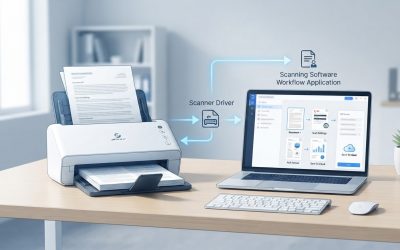
How TWAIN Scanning Works
TWAIN scanning is one of the most common ways desktop applications communicate with document...
