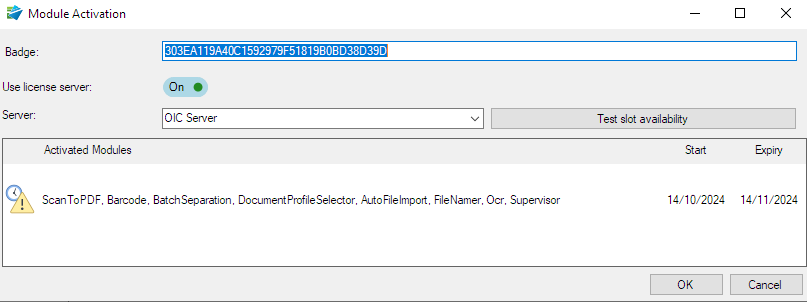
License Activation
If your software has suddenly become un-activated without any apparent reason, please visit this page
To activate an online purchase, follow the instructions Activate Using A Remote Key below. To read the technical details for using a remote key click here
Instructions to deactivate a remote key (before moving the software to a new device for example) are available at the bottom of this page – click here
To activate an offline purchase, or to renew a local key, request a key using the manual request page and then follow the instructions for Activate Using A Local Key below
To reactivate version 5 software (purchased before 21st December 2020) please visit this page to request a replacement version 5 key
These instructions apply to version 6 software only
All ScanToPDF software requires activation once the evaluation period is finished. Using ScanToPDF after the evaluation period will contravene the evaluation license agreement
Purchase license keys from the website and follow the steps on this page to activate those license keys and activate the software
If ScanToPDF has been installed already there is no requirement to install it again when license keys are purchased. Just activate the license key(s)
Activation will stop documents produced with the software being watermarked with our web site address across the page and also prevent various dialog boxes from appearing.
Purchasing License Keys
Visit the page (or pages) of the products you need
Choose the license type you require, change the quantity required and click Buy Now and proceed to the Checkout to complete payment
When an order has been paid, license keys and download details are sent in an email for your records (Subscription and Perpetual (Lifetime) + Support licenses only) and Download instructions will be available from the Downloads page of your website account.
Obtaining A Local Key or Remote Key (License Server Badge)
- Remote Key (License Server Badge) – Open the email sent to you when your order was complete (after payment) and copy the license key / badge in the email to your clipboard. If the purchase was for more than 1 license there will still only be 1 license / key badge, but it can be used multiple times, up to the number of licenses purchased.
- Local Key – If the purchase was made offline, or there is a technical reason why a license server badge is not suitable, request a local key manually using the manual key request page
When ScanToPDF is started for the first time after re-installation 1 of 2 different dialog boxes will appear.
If the software has no activation key applied, this dialog box will be displayed. Click OK to continue
When there is no valid key a message Software is not activated will be displayed
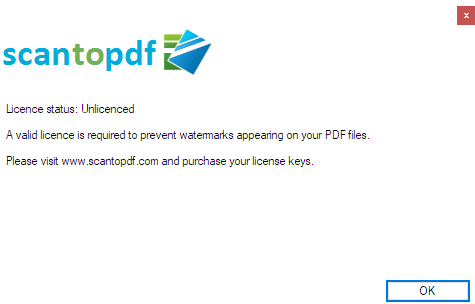
If the software has an activation key applied but the key will expire within the next 30 days, this dialog box will be displayed. Click OK to continue
When there is no valid key a message Software is not activated will be displayed

Activate Using A Remote Key
These instructions provide details to activate the software using a remote key provided by email after a purchase
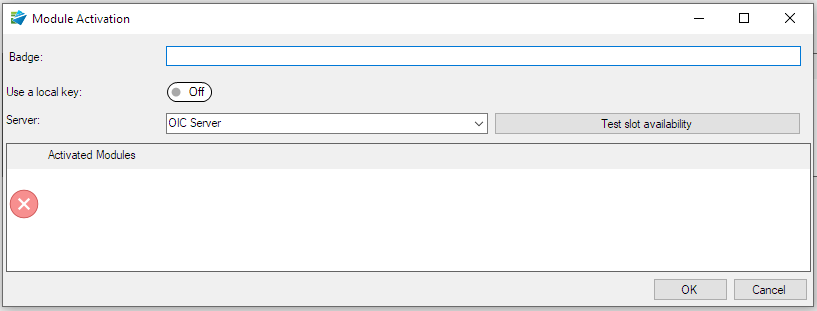
The software will start and open the Module Activation window
Make sure the Use a local key slider is set to Off (which is the default)
Make sure the Server field is set to OIC Server unless instructed by our support team to use something different
Paste the Badge / Remote Key from the email received after purchase into the Badge field
Click OK
When a remote key has been added successfully a message Software is activated using a remote key will be displayed
Activate Using A Local Key
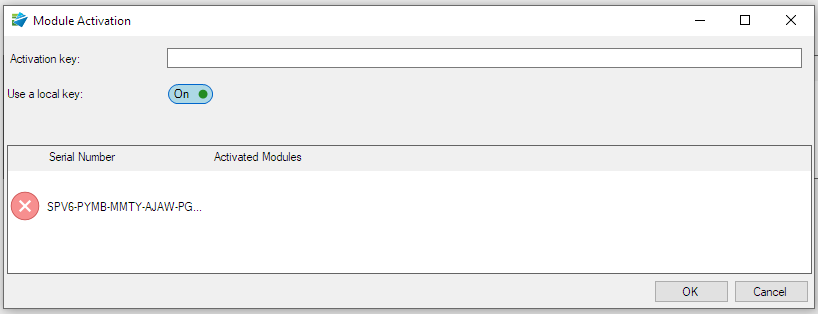
These instructions provide details to activate the software using a local key provided our licensing team
Make sure the Use a local key slider is set to On and paste the Local Key from the email received from our licensing team into the Activation key field and click OK
When a local key has been added successfully a message Software is activated using a local key will be displayed
De-Activating A Remote Key
Use this procedure to release a remote key to enable the software to be moved to a new device.
Important – These instructions apply to versions 6.5.x.x.
Please update to it using the Help >> Check for software update / Check for updates menu if the version is not 6.5.x.x
Start ScanToPDF
Click the Activation icon. The Product Activation window will be displayed
Click the Edit button to open the detailed image
Right click the mouse on the list of Activated Modules in the table and choose Release slot
The software will remove the badge / remote key and all modules will become de-activated
This badge / remote key can now be used on another host
This completes the deactivation process
Alternative Method Using ActivationStatus.exe
Run the application “C:\Program Files\O Imaging Corporation\ScanToPDF\ActivationStatus.exe”
Click the Release button
This completes the deactivation process