Upgrades & Updates
Time For A Freshen Up !
Suppose the version number is 6.0.0.11 – The first number is the MAJOR version (6 in this case) and when this changes it means we have made major changes to the software
This would be an UPGRADE
The other parts of the version number are the release number (0.0.11 in this case) and will change when MINOR changes are made to the software, such as small improvements and defect fixes (which the software industry call bugs)
This would be an UPDATE
Updates can be performed using the Help >> Check for updates menu of the software
✔ The latest version is faster and has more features than previous versions
✔ The latest version makes full use of the advances in the latest operating systems
✔ The upgrade discount is higher the sooner the upgrade is purchased (see Upgrade fees on this page)
✔ The latest version is constantly being improved, including adding customer requested features – Learn more
Upgrades & Updates
All Upgrades & Updates are FREE to customers with Subscriptions or Support Agreements
Upgrading Your Software
When an upgrade is released customers that have paid support or subscriptions will be entitled to the upgrade FREE of charge
Customers who do not have paid support will need to pay an upgrade fee to use the upgraded version
Complete our upgrade form below to request advice about upgrading from any other version to version 6
Updating Your Software
Start the ScanToPDF software and click on the Help menu and choose Check for software update (or Check for updates on earlier releases) and follow the prompts.
Details of the latest version and updates to the latest version are available from the Release Notes page
Upgrade Fees
Version 4 no longer receives an upgrade discount
Upgrade from the previous major version to the latest version, for example version 5 to version 6
Version 5 receives a 25% discount when you upgrade any time during the 2 years leading up to end of life
Version 5 receives a 15% discount when you upgrade any time during the year leading up to end of life
Discounts are off the current retail price, so the earlier the upgrade is done, the higher the savings!
For more information please visit this page – Download Policy – ScanToPDF
When a version goes end of life upgrade discounts for that version are discontinued
Complete our upgrade form below for a coupon code to use on our web site checkout page
Update Fees
ALL updates are FREE of charge to ALL customers.
Upgrade Request Form
Customers with eligible purchases can upgrade today and SAVE UP TO 50% off qualifying purchases!
Just complete the required details and click “Submit” and our upgrade team will send you the details for upgrading
Form Fields Help!
- Company name – if the software is used by a company, please enter the company name.
- Serial number – please enter the serial number shown on the Help>>About ScanToPDF window of the software.
- Version you’re using – you can find this through Help>>About window of ScanToPDF.
- Purchase reference number – invoice number or order number provided to you at the time of purchase.
- Purchase email address – please enter the email address used to make your purchase.
- Reply email address – please enter the email address we should reply to with details about your upgrade eligibility (if different from the purchase email address).
Upgrade Coupon Request
ScanToPDF Version & Serial Numbers
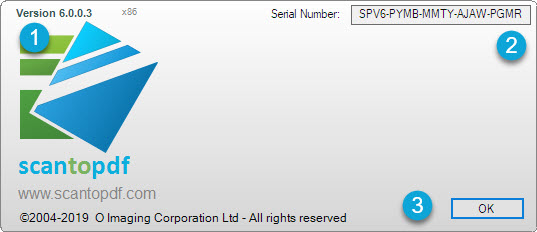
All the software we produce has a version number. The version number is displayed on the Help > About ScanToPDF window of the software – see below a guide on how to locate this.
1. Version number
Shows the version number of the software and the machine bit rate (x86 32 bit, or x64 64 bit).
Version Number 6.x.x.x
Where 6 is the MAJOR version and x.x.x are the MINOR version numbers.
2. Serial Number
Displays the unique serial number for this installation of the ScanToPDF software.
The serial number is SPV6 followed by four sets of four letters separated by dashes.
Example
SPV6-ABCD-EFGH-IJKL-MNOP
Mouse click ANYWHERE on the serial number to enable copying the serial number to the computer clipboard.
3. Close Window
Click OK to close the Help > About ScanToPDF window.